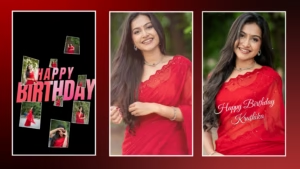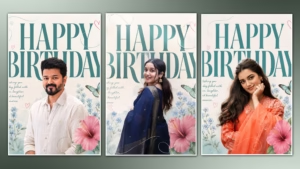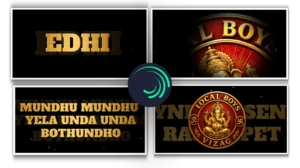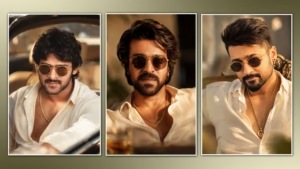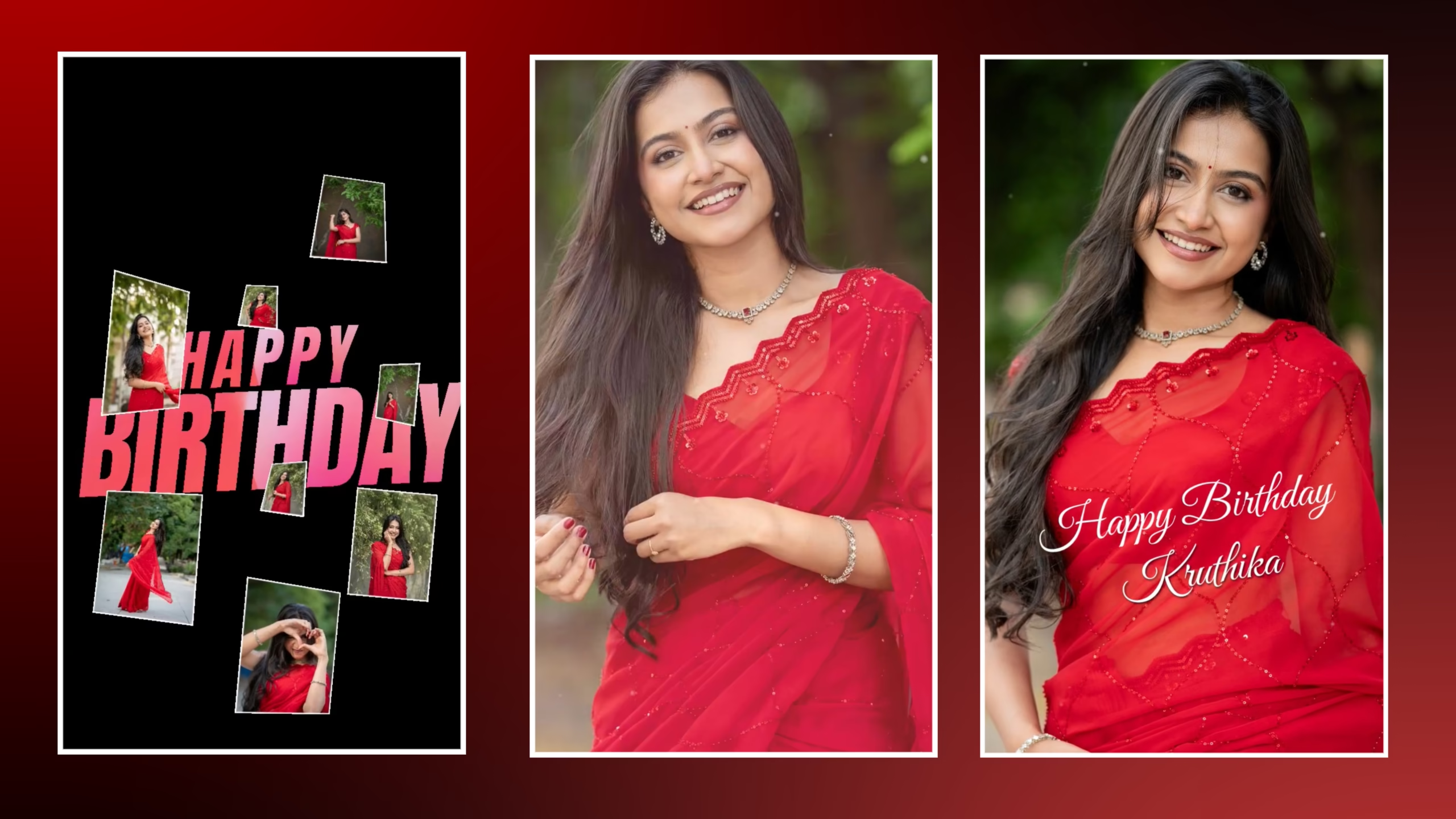
Celebrating birthdays through birthday video making has now become one of the trending ways of celebrating special days via social media. Whatever the purpose is, whether you want to create a surprise birthday video for your best friend, a family member, or a loved one, a professionally edited birthday video will surely make your wishes stand out.
Currently, the popular social media sites such as Instagram Reels, YouTube Shorts, Facebook, and WhatsApp Status are full of birthday edits where they have smooth transitions, glow effects, animated texts, and synchronized beats. They attract more attention due to the combination of emotions with professional editing skills.
In all the mobile editing apps that are currently there in the market, one of the most dependable apps is Alight Motion. The app gives you great editing features such as keyframe animation, motion graphics, visual effects, blending modes, and layer-based editing. You can use these tools to create fantastic birthday videos using your mobile phones.
The best thing about these tools is that you don’t have to be an expert to use them. Using great resources and just following some basic steps, you can create wonderful birthday videos using these tools.
This is an ultimate guide for learning all that one needs to know about editing Birthday Videos in Alight Motion. Some of the topics covered in the guide include required resources, how to edit the video, effective effects, suitable fonts, settings for exporting, common mistakes to avoid and useful tips. At the end of this article, one will be able to create awesome birthday videos.
What is Birthday Video Editing in Alight Motion?
Creating Birthday Video Editing using Alight Motion involves the creation of visually appealing birthday videos by making use of pictures, videos, animations, text, music, and other professional effects within the app called Alight Motion.
Instead of sending out regular birthday greetings, many individuals nowadays create personalized birthday videos which have stunning animations, glowing effects, slow-motion, and stylish text effects. This type of editing is popularly done on various platforms including Instagram Reels, WhatsApp status, YouTube shorts, and Facebook.
The process is made easier by Alight Motion, which provides all professional tools for video editing like keyframe animation, motion blur, camera effects, masking, blend modes, and other visual effects. If you are a newbie to mobile video editing or an expert, you will be fully in control of your birthday video.
A good birthday video not only looks good but conveys a story and captures emotion. You can convert any ordinary birthday pictures into a movie-like video using the appropriate editing style, music, and transitions.
Why Choose Alight Motion for Birthday Video Editing?
There are many mobile editing applications available today, but Alight Motion continues to be one of the most preferred choices because of its professional features and beginner-friendly interface.
Professional Keyframe Animation
Alight Motion allows you to animate every element smoothly using keyframes. This feature helps create cinematic movements for photos, text, and graphics.
Premium Visual Effects
The app includes hundreds of built-in effects like Glow, Motion Blur, Shake, RGB Split, Light Rays, Gaussian Blur, and more, making birthday videos look modern and professional.
Smooth Transitions
With a wide range of transition effects, you can connect photos and video clips seamlessly, creating a more engaging viewing experience.
Easy to Learn
Even if you have never edited a video, the user-friendly nature of Alight Motion will make it easier for you to grasp and operate. With some practice, you will find it easy to produce good-quality birthday videos.
High-Quality Export
Once your editing is complete, you can export videos in Full HD (1080p) or even higher resolutions, ensuring your birthday video looks sharp on every platform.
Things You Need Before Starting Birthday Video Editing
Before you begin creating your birthday video, it’s important to prepare all the required resources. Having everything ready beforehand will make the editing process faster, smoother, and more professional. Below are the essential items you’ll need to create an eye-catching birthday reel in Alight Motion.
Install the Latest Version of Alight Motion
The first step is to install the latest version of Alight Motion on your Android or iPhone. Using the latest version ensures you have access to the newest effects, bug fixes, and editing features. If you’re using the premium version, you’ll also unlock advanced effects and remove the watermark from exported videos.
Collect High-Quality Birthday Photos
The quality of your final video depends largely on the photos you use. Always choose clear, high-resolution images with good lighting. Avoid blurry or low-quality photos because they reduce the overall appearance of your birthday edit.
Download Background Music
Music is one of the most important parts of any birthday video. Choose a song that matches the mood of your edit. You can use emotional music, cinematic instrumentals, birthday songs, or trending Instagram audio. Beat-synced editing makes your video much more engaging.
Download PNG Elements
Decorative PNG elements make birthday videos look attractive and professional. Some commonly used PNG resources include:
- Birthday cake PNG
- Balloons
- Confetti
- Gifts
- Candles
- Golden stars
- Hearts
- Light effects
- Birthday frames
Using these elements adds a festive feel to your video without making it look overcrowded.
Use Stylish Fonts
Beautiful typography can completely change the look of your birthday video. Choose clean and modern fonts that are easy to read. Popular fonts include Poppins, Bebas Neue, Anton, League Spartan, and Montserrat. These fonts work perfectly for birthday wishes and name animations.
Download Project Files or XML Files (Optional)
If you’re a beginner, you can save time by using pre-made XML project files. These files already include transitions, animations, and effects. You only need to replace the sample photos with your own birthday images.
How to Create Birthday Video Editing in Alight Motion
Now that you have all the required resources, it’s time to start editing. Follow the steps below carefully to create a professional birthday reel using Alight Motion.
Step 1: Create a New Project
Open Alight Motion and tap the “+” icon to create a new project. Select the appropriate aspect ratio based on where you plan to upload the video.
- 9:16 for Instagram Reels, YouTube Shorts, and WhatsApp Status
- 16:9 for YouTube videos
- 1:1 for Instagram posts
Set the frame rate to 60 FPS for smooth animations.
Step 2: Import Your Birthday Photos
Add your selected birthday photos to the timeline. Arrange them in the order you want them to appear. Try to mix close-up shots, smiling photos, and group pictures to keep the video visually interesting.
Maintain equal timing between each photo to create a balanced flow.
Step 3: Add Background Music
Import your chosen birthday song and place it on the timeline. Listen carefully to identify the beats. Sync your photo changes and transitions with the music for a cinematic effect.
Beat synchronization is one of the easiest ways to make your birthday video feel more professional.
Step 4: Apply Keyframe Animation
Keyframes allow you to animate photos smoothly. Add gentle zoom-in, zoom-out, slide, and rotation animations to each image. Avoid using random or overly fast movements, as they can make the video feel distracting.
Smooth animations always create a more premium viewing experience.
Step 5: Add Smooth Transition Effects
Transitions connect your photos naturally and keep the video flowing. Popular transition styles include:
- Zoom Transition
- Swipe Transition
- Blur Transition
- Fade Transition
- Camera Movement
- Motion Blur Transition
Use transitions consistently throughout the video instead of applying different styles to every clip.
Step 6: Add Glow, Shake, and Visual Effects
Once your animations are complete, enhance your video with professional effects. Some of the most popular effects for birthday edits include:
- Glow Effect
- Motion Blur
- Camera Shake
- RGB Split
- Flash Effect
- Light Rays
- Bokeh Overlay
Remember that using too many effects can make the video look messy. A simple and clean editing style usually looks more professional.
Step 7: Add Birthday Wishes and Stylish Text
Finally, include a heartfelt birthday message using animated text. You can write messages such as:
- Happy Birthday!
- Wishing You Happiness and Success
- Have an Amazing Year Ahead
Apply subtle text animations like fade-in, slide-up, or zoom to make the message stand out without distracting from the photos.
Best Effects for Birthday Video Editing in Alight Motion
Visual effects are what make a simple birthday video look premium and cinematic. However, using too many effects can make your edit look cluttered. The key is to choose effects that complement your photos and match the mood of your video.
Some of the most popular effects for birthday video editing include:
Glow Effect
Glow adds brightness around your subject and gives the video a vibrant, festive look. It works especially well for night photos and celebration scenes.
Motion Blur
Motion Blur creates smoother transitions and realistic movement between clips, making animations feel more natural.
Camera Shake
A subtle camera shake effect synced with the music beats adds energy to the video. Avoid excessive shaking, as it can distract viewers.
RGB Split
RGB Split gives your video a modern cinematic feel by separating color channels for a stylish visual effect. It works best during transitions or beat drops.
Light Leak and Bokeh
Light leak overlays and bokeh effects create a warm, dreamy atmosphere. They are perfect for emotional birthday moments and slow-motion clips.
Best Fonts for Birthday Video Editing
Fonts play an important role in making your birthday wishes stand out. Choose fonts that are stylish yet easy to read.
Some excellent fonts for birthday edits are:
- Poppins – Clean and modern.
- Bebas Neue – Bold and attractive for titles.
- Anton – Great for names and headlines.
- Montserrat – Professional and elegant.
- League Spartan – Perfect for premium-looking text.
- Cinzel – Ideal for luxury or royal-themed birthday edits.
Use one or two fonts throughout the video to maintain a consistent design.
Best Music for Birthday Reels
The right music can completely change the mood of your birthday video. Choose audio that matches the emotions you want to express.
Popular choices include:
- Happy Birthday Instrumental
- Cinematic Background Music
- Emotional Piano Music
- Soft Acoustic Songs
- Trending Instagram Reel Audio
- Party Beats for Celebration Videos
When editing, synchronize transitions and animations with the beat of the music. This simple technique makes your video feel much more professional.
Download Birthday Editing Resources
To create a premium birthday edit, you may need additional resources. Organize them in one place before starting your project.
Useful resources include:
- Birthday Project Files
- XML Files
- Birthday PNG Elements
- Premium Fonts
- Light Leak Overlays
- Bokeh Overlays
- Birthday Music
- Confetti Effects
- Birthday Frame PNGs
Providing these resources on your blog will also increase user engagement and encourage visitors to return.
Best Export Settings
After completing your edit, exporting with the correct settings ensures the best video quality.
Recommended export settings:
- Resolution: 1080 × 1920 (Full HD)
- Frame Rate: 60 FPS
- Format: MP4
- Bitrate: High Quality
- Codec: H.264
These settings produce smooth, high-quality videos suitable for Instagram Reels, YouTube Shorts, Facebook, and WhatsApp Status.
Common Mistakes to Avoid
Many beginners make small mistakes that reduce the overall quality of their edits. Avoid the following:
- Using low-quality or blurry images.
- Adding too many effects in one video.
- Choosing fonts that are difficult to read.
- Ignoring beat synchronization.
- Using random color combinations.
- Exporting videos at low resolution.
- Making transitions too fast or too slow.
- Overusing camera shake effects.
Keeping your editing simple and clean usually produces better results.
Professional Tips for Better Birthday Video Editing
If you want your birthday videos to look more premium, keep these tips in mind:
- Always use high-resolution photos.
- Match every transition with the music beat.
- Maintain a consistent color theme throughout the video.
- Use smooth keyframe animations instead of sudden movements.
- Keep text animations simple and readable.
- Add effects only where they improve the video.
- Preview your project before exporting.
- Practice regularly to improve your editing skills.
Professional-looking edits are often created through careful planning rather than adding more effects.
My Experience with Birthday Video Editing in Alight Motion
With time, I have made various birthday video clips through Alight Motion for my friends, relatives, and social media accounts. At first, I would include too many effects because I felt they would make the video look better. With time, however, I understood that simple designs, good transition, and synchronized beats would actually make it more appealing.
In the modern world, I have learned how to balance myself when doing the editing process, ensuring high-quality photos, cool animations, cinema effects, and good music are included to get a good look and emotional appeal. The most important advice I can give to other users is to practice often until you develop your editing style.
Frequently Asked Questions (FAQs)
1. Is Alight Motion free to use?
Yes, Alight Motion offers a free version with basic features. A premium subscription unlocks advanced effects and removes the watermark.
2. Can beginners create birthday videos in Alight Motion?
Absolutely. With regular practice and the right resources, beginners can create impressive birthday edits.
3. Which aspect ratio is best for birthday reels?
A 9:16 aspect ratio is ideal for Instagram Reels, YouTube Shorts, and WhatsApp Status.
4. What is the best export quality?
Export your project in 1080p at 60 FPS for smooth and high-quality videos.
5. Can I use XML project files?
Yes. XML files help beginners create professional edits quickly by importing pre-made animations and effects.
6. Which music is suitable for birthday videos?
Cinematic instrumentals, emotional tracks, birthday songs, and trending social media audio all work well depending on your editing style.
7. How long does it take to create a birthday edit?
A simple birthday video can be completed in 30–60 minutes, while more advanced edits may take longer.
8. Can I upload my birthday video to Instagram and YouTube?
Yes. Alight Motion exports videos in formats compatible with all major social media platforms.
Conclusion
To make a great birthday video using Alight Motion, one doesn’t need to try too hard. All you have to do is pick good photos, suitable music, appropriate transitions, and effects, and you will get an outstanding birthday video, both aesthetically pleasing and emotionally charged.
However, the main thing is not to overload your video with unnecessary elements. Instead, you should pay attention to smooth animations, synchronization of beats, and proper design. It matters a lot.
No matter whether you are making an Alight Motion birthday video for your friends, families, or even clients, Alight Motion has everything you need to make high-quality edits right on your phone. Just keep practicing, try out new tricks, and keep improving yourself.
And if this tutorial was helpful for you, then be sure to check out our other editing guides, grab the free birthday editing assets, and share this article with those who wish to make cool birthday videos in Alight Motion. Enjoy editing!
Full Project