Viral Ganesha Logo Intro Edit (2026)
A professional Ganesha logo intro should make two things immediately clear: the Ganesha visual and the original logo. The best results come from controlled lighting, realistic depth, subtle atmosphere, and smooth movement rather than excessive effects.
This workflow explains how to create a cinematic Ganesha logo intro for YouTube videos, Instagram Reels, festival content, and creator branding.
1. Prepare the Original Logo
Start with the cleanest, highest-resolution version of your logo.
Use a reference with:
- Correct logo design
- Accurate spelling
- Sharp edges
- Clear symbols
- Minimal compression
- Transparent or simple background
A logo around 1000 px wide or larger is a useful starting point.
Avoid screenshots containing browser elements, borders, or unrelated objects. For logos with small text, always use the highest-quality reference available.
2. Choose the Ganesha Visual Style
Choose the appearance of Lord Ganesha before creating the final composition.
Suitable cinematic styles include:
- Elegant golden statue
- Detailed bronze statue
- Traditional carved Ganesha
- Refined metallic Ganesha
- Temple-inspired Ganesha
For a premium result, keep the Ganesha visual detailed but uncluttered. The visual should complement the logo rather than compete with it.
3. Preserve the Original Logo
When using an AI image-generation workflow, explicitly instruct the tool to preserve the logo.
Use:
Preserve the exact original logo design, lettering, spelling, symbols, proportions, and identity. Do not redesign, replace, distort, or modify the logo text.
This is especially important when the logo contains readable text because AI-generated lettering can sometimes change characters or proportions.
Always check the generated result for incorrect spelling or altered symbols before continuing.
4. Create Realistic 3D Depth
A flat logo can be given a more realistic appearance using extrusion, bevels, shadows, and reflections.
Useful starting points:
| Element | Starting Point |
|---|---|
| Logo extrusion | 8–20% of logo width |
| Bevel | Subtle |
| Reflection | Low–medium |
| Shadow | Soft |
| Background depth | Moderate |
The 3D treatment should make the logo appear dimensional without making the extrusion unnecessarily thick.
5. Combine Material With Cinematic Lighting
Choose one primary logo material, such as:
- Brushed metal
- Chrome
- Dark metallic
- Matte black
- Glossy colored finish
For Ganesha-themed visuals, warm highlights can work particularly well.
A practical lighting setup:
| Light | Starting Level |
|---|---|
| Key light | Strong |
| Fill light | 20–40% |
| Rim light | 30–50% |
| Background light | Subtle |
Place the key light from one direction and keep the opposite side darker. A subtle rim light can separate the Ganesha and logo from the background.
6. Build the Background and Atmosphere
Use a background that creates depth without distracting from the main elements.
Good choices include:
- Dark temple-inspired environment
- Cinematic studio
- Dark red or maroon atmosphere
- Dark gold environment
- Minimal smoke-filled scene
Add atmospheric elements only when they improve depth:
- Fine golden particles
- Floating dust
- Soft haze
- Subtle smoke
- Controlled light streaks
Keep atmospheric intensity around 10–30% of the overall visual impact.
Avoid combining heavy particles, strong lens flares, thick smoke, and excessive glow.
7. Create the Ganesha-to-Logo Reveal
A simple reveal gives the viewer enough time to understand the visual and recognize the branding.
A useful structure is:
Darkness → Ganesha reveal → Camera movement → Logo reveal → Final logo hold
For vertical content, keep important elements inside the central 60–70% of the frame. This provides room for camera movement and avoids unnecessary cropping.
8. Use a Cinematic Animation Timeline
Keep the intro short and focused.
A practical 3–5 second structure:
| Time | Action |
|---|---|
| 0.0–0.6 sec | Dark background and subtle atmosphere |
| 0.6–1.5 sec | Ganesha gradually appears |
| 1.5–2.5 sec | Camera moves toward the scene |
| 2.5–3.5 sec | Logo begins to reveal |
| 3.5–5.0 sec | Logo holds with subtle movement |
The exact timing can be adjusted to match the audio.
The final logo should remain visible long enough for viewers to recognize the brand.
9. Use Subtle Camera Movement
Camera movement creates depth without requiring complicated effects.
Recommended movements:
- Slow push-in
- Small horizontal orbit
- Gentle tilt
- Slight vertical movement
For a short intro, approximately 5–10° of camera movement is a useful starting point.
Avoid fast rotation or aggressive zooming because the logo can become difficult to read.
10. Use This AI Prompt
Use the uploaded logo as the branding reference and describe the Ganesha visual, environment, lighting, and composition clearly.
Ganesha Logo Intro Prompt
Create a premium cinematic Ganesha logo intro visual using the uploaded logo as the exact branding reference. Preserve the original logo design, lettering, spelling, symbols, proportions, and identity without redesigning or changing the text. Place a highly detailed and respectful traditional Ganesha statue beside and visually connected to the logo, with realistic sculpted details, refined golden and bronze material, natural surface texture, and cinematic depth. Use a dark premium environment with subtle temple-inspired atmosphere, warm directional key lighting, soft fill light, and a subtle rim light. Add minimal golden particles, fine atmospheric haze, realistic shadows, controlled reflections, and gentle volumetric light. Keep the logo sharp, readable, and visually prominent. Use a sophisticated dark, gold, and warm amber color palette. Create realistic 3D depth, cinematic contrast, natural perspective, professional composition, and high-detail rendering. Avoid distorted logo lettering, incorrect spelling, extra symbols, excessive glow, excessive particles, cartoon styling, unrealistic anatomy, cluttered backgrounds, and overexposed highlights.
The most important instructions are logo accuracy, realistic lighting, depth, and readability.
11. Match the Ganesha and Logo Lighting
If Ganesha and the logo are created from separate elements, their lighting must look like it belongs to the same scene.
Check:
- Light direction
- Shadow direction
- Highlight color
- Reflection intensity
- Contact shadows
For example, if warm light comes from the left side of the Ganesha, the logo should not have an unexplained strong highlight coming from the opposite direction.
Consistent lighting is one of the easiest ways to make the final composition look more realistic.
12. Sync the Reveal With Music
The logo reveal can be synchronized with important points in the soundtrack.
A simple structure:
- First beat → atmosphere begins
- Rising sound → Ganesha appears
- Main beat → logo reveal
- Final beat → logo reaches its final position
Avoid adding a transition on every beat. One well-timed reveal usually creates a cleaner result.
13. Export the Final Intro
For vertical short-form content:
| Setting | Recommendation |
|---|---|
| Resolution | 1080 × 1920 px |
| Aspect ratio | 9:16 |
| Frame rate | 30 fps |
| Duration | 3–5 seconds |
| Format | MP4 |
| Codec | H.264 |
For landscape YouTube content:
1920 × 1080 px — 16:9
Keep the original logo and high-quality source assets separately so different versions can be created later.
Final Quality Checklist
Before publishing, check:
- Logo spelling is correct
- Original logo identity is preserved
- Ganesha visual looks detailed and respectful
- Lighting is consistent
- 3D depth looks natural
- Background does not overpower the logo
- Particles remain subtle
- Camera movement is smooth
- Logo remains readable
- No obvious AI distortions are visible
- Audio and logo reveal are synchronized
- Export settings match the target platform
Final Takeaway
A professional Ganesha logo intro depends on accurate branding, a well-designed Ganesha visual, realistic depth, controlled lighting, subtle atmosphere, and smooth movement.
Keep the logo readable and make every effect support the branding rather than distract from it.
Viral Ganesha Logo Intro Prompt
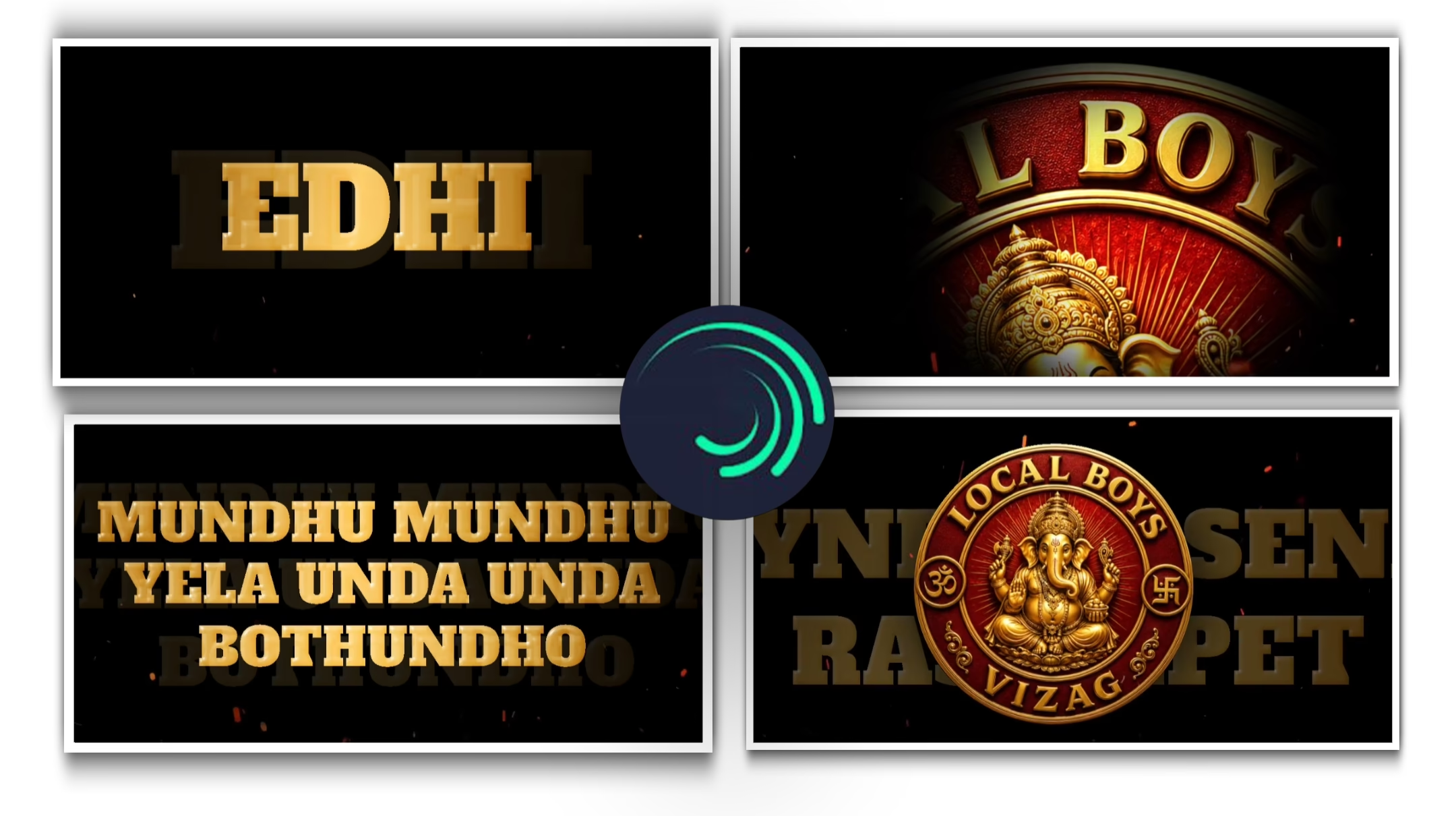
Create a premium 3D circular emblem logo on a deep black background. The logo features a richly detailed golden Lord Ganesha seated at the center, rendered in an elegant metallic gold finish with intricate ornaments and a divine crown. Surrounding Ganesha is a radiant red circular medallion with golden concentric borders and subtle sunburst rays emanating from the center. The outer ring contains bold embossed gold text reading “LOCAL BOYS” at the top and “VIZAG” at the bottom. Include a golden Om (3) symbol on the left side and a traditional Hindu auspicious symbol on the right side within the ring.
FULL PROJECT : DOWNLOAD
XML PROJECT : DOWNLOAD