How to Make a Cinematic Birthday Reel on Your Phone
A cinematic birthday reel is not created by simply adding cinematic filters or using many transitions. The professional look comes from story structure, pacing, music synchronization, movement, color, typography, and controlled effects.
You can create a cinematic birthday reel entirely on your phone if every editing decision has a purpose. The goal is to make the reel feel like a short visual story rather than a random collection of photos.
1. Start With a Simple Story Structure
Before opening your editing app, decide how the reel should progress.
A practical structure is:
Introduction → Build-up → Main Moment → Emotional Peak → Birthday Message → Ending
For a 20-second reel:
- 0–2 sec: Strong opening visual
- 2–6 sec: Older memories or introduction
- 6–12 sec: Recent photos and memorable moments
- 12–16 sec: Best portrait or celebration clip
- 16–20 sec: Birthday message and final shot
You do not need every section in every reel. The important thing is that the visuals should progress instead of feeling randomly arranged.
Editing rule: Every clip should add information, emotion, movement, or visual variety. If it adds nothing, remove it.
2. Choose Fewer, Better Photos
Using too many photos usually makes a birthday reel repetitive.
Choose images with different purposes:
- Strong opening image
- Close-up portrait
- Full-body photo
- Family or friendship moment
- Candid moment
- Celebration photo
- Strong final image
Avoid using several photos with almost identical poses.
Practical selection guide
| Reel Type | Suggested Visuals |
|---|---|
| 15–20 sec photo reel | 8–14 strong photos |
| Photo + video reel | 5–9 photos + 3–6 short clips |
These are starting ranges. Let the music and story determine the final number.
3. Choose the Music Before Finalizing the Timing
Music controls the rhythm of the reel.
Look for a track with noticeable sections:
Intro → Build-up → Beat/drop → Emotional section → Ending
For emotional birthday reels, slower music with clear musical changes usually works well.
For energetic birthday reels, choose music with stronger beats and noticeable rhythm changes.
Do not choose a song only because it is popular. The music should match the mood of the birthday video.
4. Find the BPM and Mark Important Beats
If your editing app provides BPM or beat markers, use them to create accurate timing.
Beat interval formula
Beat interval = 60 ÷ BPM
Examples:
- 120 BPM = 0.5 seconds per beat
- 100 BPM = 0.6 seconds per beat
- 90 BPM ≈ 0.67 seconds per beat
You do not need to change the image on every beat.
A better approach is:
Strong beat → major visual change
Medium beat → movement or transition
Small beat → subtle animation
This keeps the rhythm natural instead of mechanical.
5. Make the Opening Strong
The first few seconds should immediately introduce the subject.
Instead of starting with a long title card, begin with a strong visual such as:
- Best portrait
- Short celebration clip
- Close-up detail
- Strong reaction
- Movement toward the camera
- Visual change synchronized with music
Birthday text can appear after the viewer has seen the main subject.
Useful starting range: Keep the initial visual change around 0.5–2 seconds, depending on the music.
6. Control Photo Duration
Photo timing has a major effect on how cinematic the reel feels.
A useful starting range is:
0.6–1.5 seconds per photo
Use shorter durations for energetic sections and longer durations for emotional moments.
Do not make every photo exactly the same length.
Example:
0.8 → 0.8 → 1.1 → 0.7 → 1.4 sec
Simple rule
Fast music = shorter visual duration
Emotional music = longer visual duration
7. Add Controlled Movement to Photos
Still photos can feel more dynamic with subtle movement.
Useful techniques include:
- Slow zoom in
- Slow zoom out
- Horizontal pan
- Vertical movement
- Slight rotation
A practical starting zoom range is:
100% → 105–112%
Avoid extreme zooms because they can expose image softness or become distracting.
Match movement to the image:
- Close-up portrait: Slow zoom toward the face
- Full-body image: Gentle vertical movement
- Wide group photo: Slow horizontal pan
8. Match Cuts With Visual Movement
Beat synchronization is not only about changing clips when the music hits.
You can also cut when there is natural movement:
- Person turns → cut to the next shot
- Camera moves → change scene
- Hand movement → next image
- Subject looks to one side → matching visual
- Light change → visual transition
Better editing principle: Combine music timing + visual movement whenever possible.
9. Use Simple Transitions
Cinematic editing does not require a different transition between every photo.
Useful options include:
- Straight cut
- Fade
- Dissolve
- Motion-based transition
Use a straight cut when the next visual is already strong.
Use a dissolve for a softer emotional connection.
Use motion-based transitions when movement supports the next shot.
Avoid stacking multiple effects such as:
Flash + zoom + blur + shake + spin + glitch
If the transition attracts more attention than the birthday person, simplify it.
10. Create Subject and Background Separation
A small amount of separation can make the subject stand out.
Useful techniques include:
- Subtle background blur
- Slight background darkening
- Controlled subject shadow
- Light behind the subject
For a starting separation effect:
Opacity: 15–30%
Keep it subtle so the subject remains the main focus.
11. Use Cinematic Color Carefully
Apply basic correction before adding a creative color style.
Useful starting ranges:
| Adjustment | Starting Range |
|---|---|
| Contrast | +3 to +10 |
| Highlights | −10 to −25 |
| Shadows | +5 to +15 |
| Saturation | −3 to +5 |
| Sharpening | +3 to +10 |
These are starting points, not fixed settings. Different photos may require different adjustments.
The main goal is:
Natural skin tones + controlled highlights + readable shadows + consistent color
Avoid heavily changing skin color just to create a cinematic appearance.
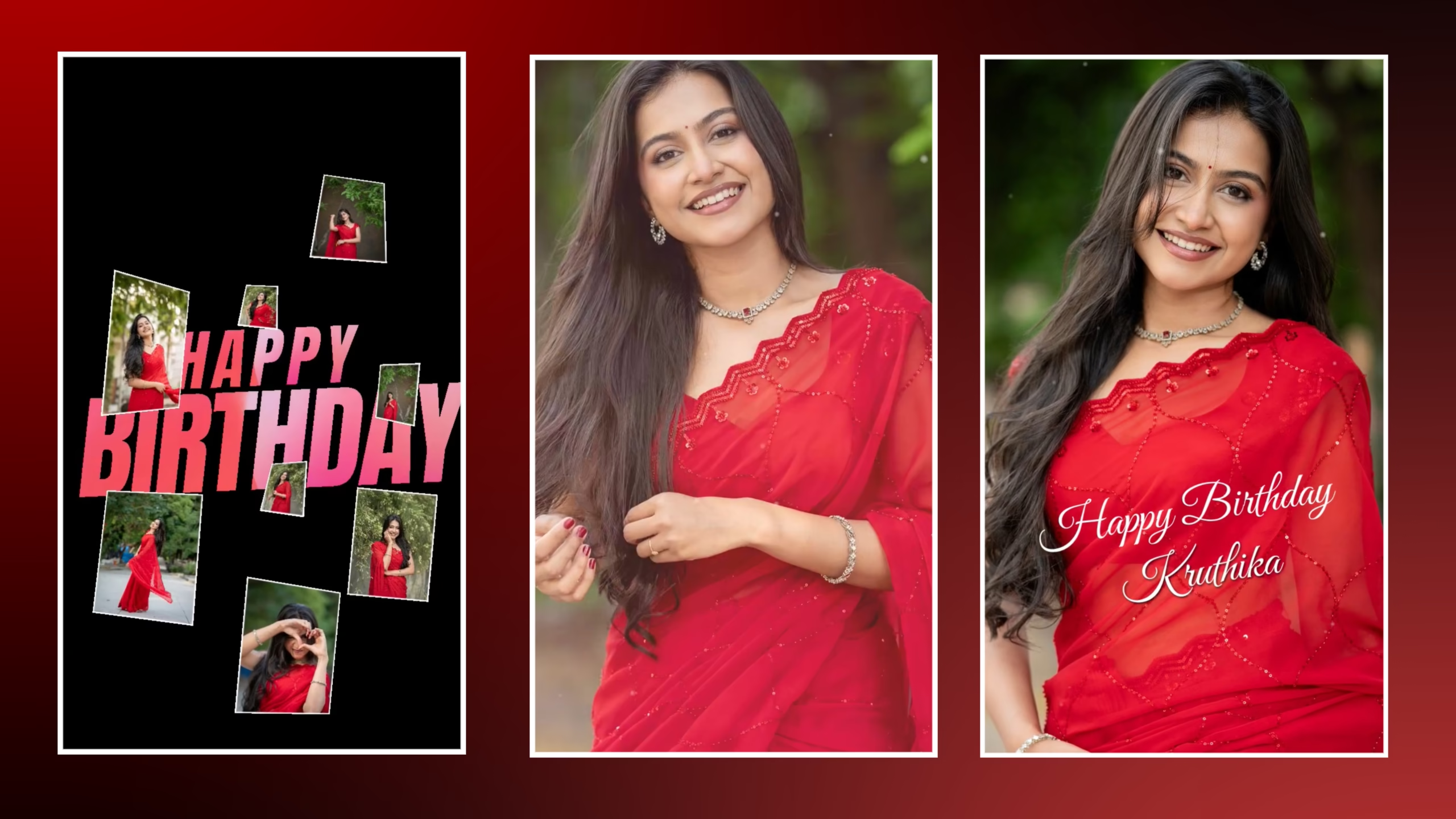
12. Keep Birthday Text Minimal
Text should support the story instead of covering the main visual.

Useful text elements include:
HAPPY BIRTHDAY
[NAME]
SHORT PERSONAL MESSAGE
Use one primary font and, if needed, one supporting font.
Simple text animations work well:
- Fade
- Gentle upward movement
- Subtle scale
Keep text away from important facial details and other key visual elements.
13. Build the Emotional Peak
Save an especially meaningful visual for the musical or emotional peak.
A simple structure can be:
Build-up → Memories → Faster sequence → Beat drop → Best portrait → Birthday message
This creates progression and gives the strongest visual a clear purpose.
14. Use Speed Changes Only When Necessary
Speed changes can emphasize important movement in celebration footage.
A simple example:
100% → 50–70% → 100%
Use this only when the clip contains meaningful movement. Avoid applying slow motion to every clip.
15. Create a Strong Ending
Do not allow the reel to simply stop after the final photo.
A clean ending can be:
Best final image → Name → Birthday message → Music ending
Example:
“Happy Birthday, Arjun ❤️”
Starting duration: approximately 1.5–3 seconds, depending on the music and text.
16. Final Timing and Quality Check
Watch the complete reel once before exporting.
Check:
- Cuts match important beats
- No photo stays unnecessarily long
- Text does not cover important details
- Transitions are not distracting
- Audio changes feel smooth
- Faces remain clear
If an effect attracts more attention than the birthday subject, reduce or remove it.
17. Export Settings for Reels
For a standard vertical birthday reel, use:
| Setting | Recommended |
|---|---|
| Resolution | 1080 × 1920 px |
| Aspect ratio | 9:16 |
| Format | MP4 |
| Quality | High/Best available |
After exporting, check the actual video for:
Text clarity + face quality + audio sync + smooth movement + correct framing
Clean Cinematic Birthday Reel Workflow
Choose music → Select photos/clips → Mark important beats → Create opening → Arrange visuals → Add controlled movement → Match cuts with movement → Add simple transitions → Correct color → Add minimal text → Build emotional peak → Create ending → Final check → Export
Common Mistakes to Avoid
- Using too many photos
- Cutting on every single beat
- Giving every photo exactly the same duration
- Overusing transitions
- Excessive zooming
- Over-editing skin tones
- Adding too much text
- Using random effects
- Making the ending too short
- Choosing music that does not match the mood
Final Takeaway
A cinematic birthday reel depends on timing, storytelling, movement, composition, music, color, and restraint.
Use strong visuals, match important cuts with the music, add controlled movement, keep transitions simple, maintain natural colors, and reserve your strongest visual for the emotional peak.
Professional editing comes from better decisions, not more effects.
Full Project